
A LeadsHook V2 Decision Tree can be put in front of visitors in two ways: share a Direct Link, or place the Embed Code inside a page on your website. This guide shows where both options are located in the current V2 interface, what every setting does, and how to test the result before sending traffic.
LeadsHook V2 Decision Tree: Direct Link or Embed Code?
| Direct Link | Embed Code | |
|---|---|---|
| What visitors see | The Decision Tree opens as its own page. | The Decision Tree appears inside a page on your website. |
| Best for | Email, SMS, social posts, ads, QR codes, and buttons. | Landing pages, website pages, and blog posts. |
| Website required | No. | Yes. |
| Website editing required | No. Copy and share the URL. | Yes. Your page editor must accept custom HTML and a script. |
| Page design | The Decision Tree fills the LeadsHook-hosted page. | Your website supplies the header, footer, navigation, and surrounding content. |
Before you begin
- Finish the changes you want visitors to see.
- Publish the Decision Tree. If you change it later, publish the new version and test the live link or embedded page again.
- Decide which connected domain should appear in the link or embed code.
- Use Preview only while checking changes. Preview disables cache and displays a preview banner, so leave it off for normal visitor traffic.
Where to find both options
- Open Decision Trees from the top navigation.
- Find the Decision Tree you want to share.
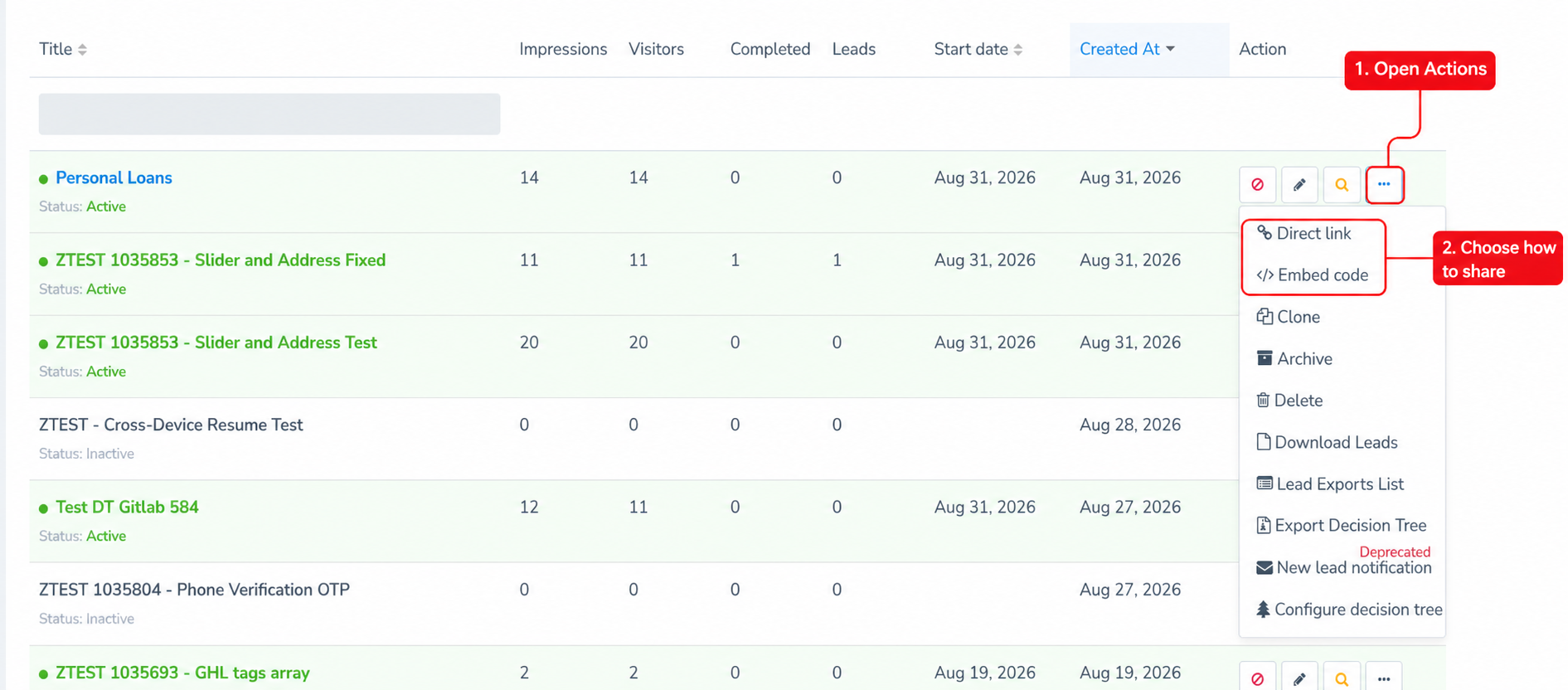
- In the Action column, click the three-dot Actions button.
- Select Direct link or Embed code.
Option 1: Share a Direct Link
Choose a Direct Link when your LeadsHook V2 Decision Tree should open as a separate page. No website code is needed.
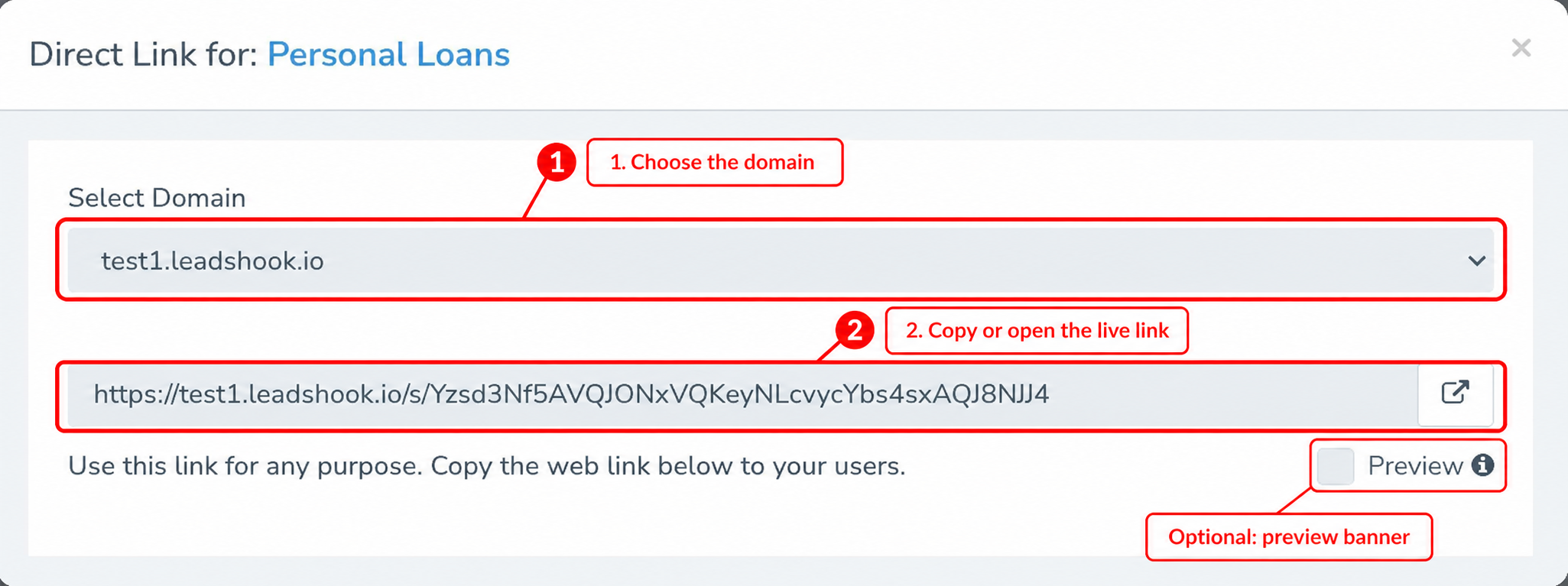
- Open the tree’s Actions menu and select Direct link.
- Under Select Domain, choose the domain visitors should see.
- Copy the URL from the link field. You can also click the external-link icon to open it.
- Leave Preview off before sharing the link with visitors. Turn it on only when you need a cache-disabled preview with the preview banner.
- Open the copied URL in a private browser window and complete the Decision Tree from the first question to the final result or redirect.
Common ways to use the Direct Link
- Use it as the destination URL for an ad or call-to-action button.
- Add it to an email or SMS message.
- Share it in a social post.
- Turn it into a QR code.
Option 2: Add the Decision Tree to your website
Choose Embed Code when visitors should stay on your website while completing the Decision Tree. The code contains the Decision Tree container and the LeadsHook script that loads it.
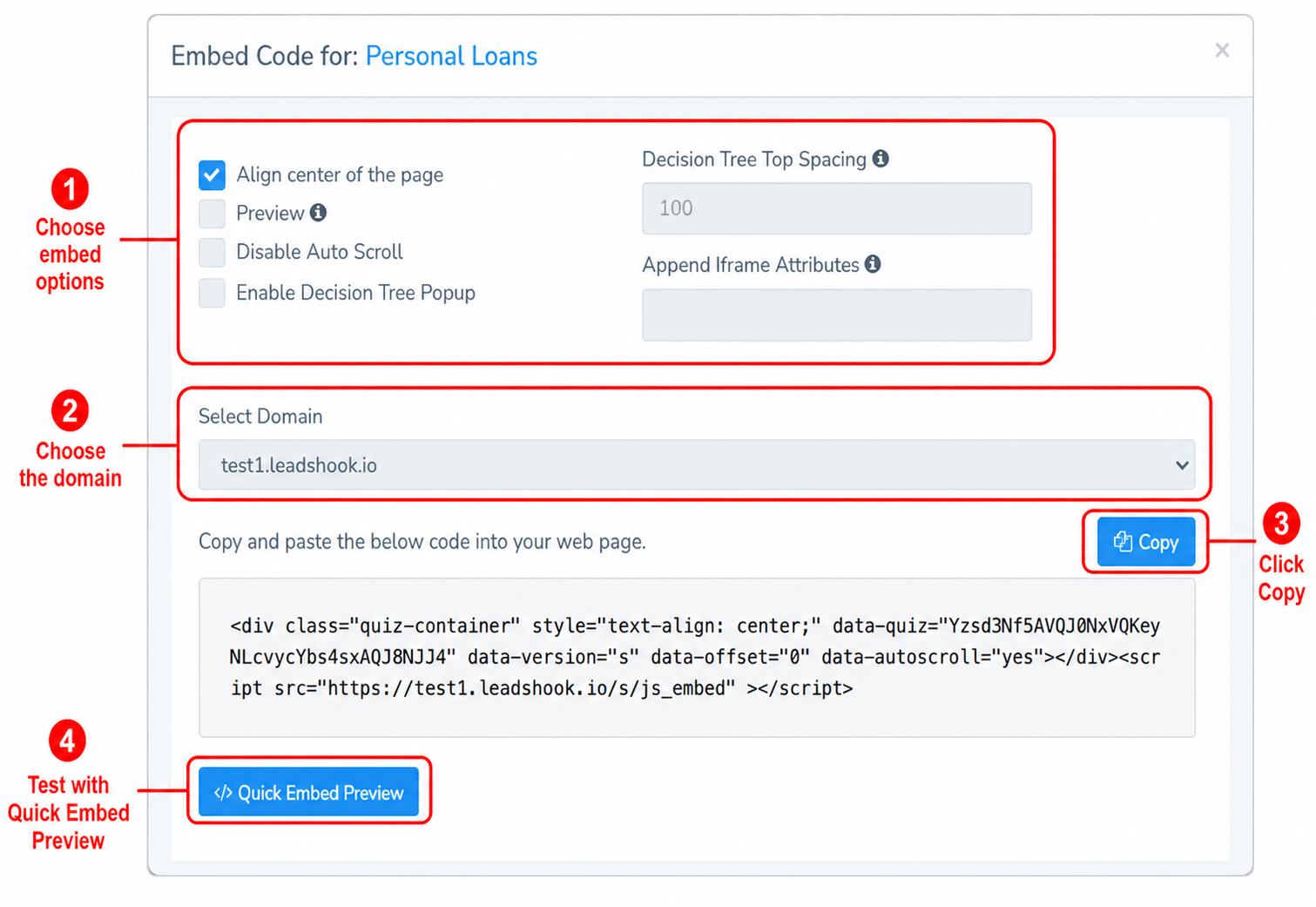
- Open the tree’s Actions menu and select Embed code.
- Review the embed options described below.
- Choose the domain visitors should see.
- Click Quick Embed Preview. A separate preview page opens and shows how the generated code loads the Decision Tree.
- Click Copy.
- Paste the complete code into a Custom HTML, HTML, Code, or Embed element in your website editor. Do not paste it into a normal paragraph or rich-text block.
- Save or publish the website page.
- Open the public website page in a private browser window and complete the full Decision Tree.
What the Embed Code options do
- Align center of the page: centers the Decision Tree container in the available page area.
- Preview: disables cache so recent changes can be seen immediately and adds a preview banner. Turn it off before using the code for real visitors.
- Disable Auto Scroll: stops the embedded Decision Tree from automatically moving the visitor’s page position as the flow changes.
- Enable Decision Tree Popup: generates the popup version of the embed and reveals a Button Text field for the popup launcher.
- Decision Tree Top Spacing: adds space above the embedded tree. Use it when a fixed website header or menu would otherwise cover the top of the tree.
- Append Iframe Attributes: adds advanced attributes to the generated iframe. Leave this blank unless your website developer knows which attributes are required.
- Select Domain: controls the domain used by the generated embed code.
WordPress block editor
- Edit the page or post where the Decision Tree should appear.
- Click the + block inserter.
- Search for and add a Custom HTML block.
- Paste the full LeadsHook embed code into that block.
- Use the block’s Preview option to check the placement.
- Click Save or Update, then test the public page in a private browser window.
If you use a visual page builder such as Elementor, place the code in its HTML element rather than a Text Editor element. For more about the standard block, see the official WordPress Custom HTML documentation.
Testing checklist
- The correct Decision Tree opens.
- No preview banner appears on the visitor version.
- The first question is fully visible on desktop and mobile.
- Buttons can be clicked and each step advances normally.
- Required fields can be completed.
- The final result or redirect works.
- The embedded page does not cut off the Decision Tree or hide it behind a fixed header.
If the Direct Link works but the embed does not
- Return to LeadsHook and confirm that Quick Embed Preview loads the Decision Tree.
- Copy a fresh Embed Code and replace the complete old snippet. Do not combine part of the old code with part of the new code.
- Confirm the code is inside a Custom HTML or HTML element, not a paragraph or rich-text element.
- Save or publish the website page, then clear the website or page-builder cache.
- Test the public page in a private window and on a mobile device.
For more checks, see If Direct Link is working and Embed isn’t. For popup-specific setup, see How to Display a Decision Tree in a Popup.

