
Turn on Always restart decision tree from first node to make every visit and every page refresh start at the first node. Use it when many people share one device, such as a tablet at an event, or when you run the Decision Tree as a chatbot. Takes about 2 minutes.
Verified in LeadsHook V2 on October 5, 2026.
Video guide
How it works
| Off (default) | On | |
|---|---|---|
| Page refresh or return visit before finishing | Continues at the node where the visitor left off | Starts again at the first node |
| Lead record | The same lead is updated | A new lead is created |
| Best for | Most lead capture Decision Trees | Shared devices, such as event tablets, and chatbots |
Note: With this option on, a visitor who refreshes the page partway through starts again at the first node. Their earlier answers stay on the previous lead.
Before you begin
- A role that can publish Decision Trees: Owner, Admin or Publisher. The User role cannot publish. See Team Members: How to Add, Remove and Change Role Permissions for users.
Turn on Always restart
- Open your Decision Tree in the builder.
- Click the Decision Tree title at the top left of the builder. The Edit Decision Tree window opens on the Details tab.

- Under Decision Tree Options, tick Always restart decision tree from first node.
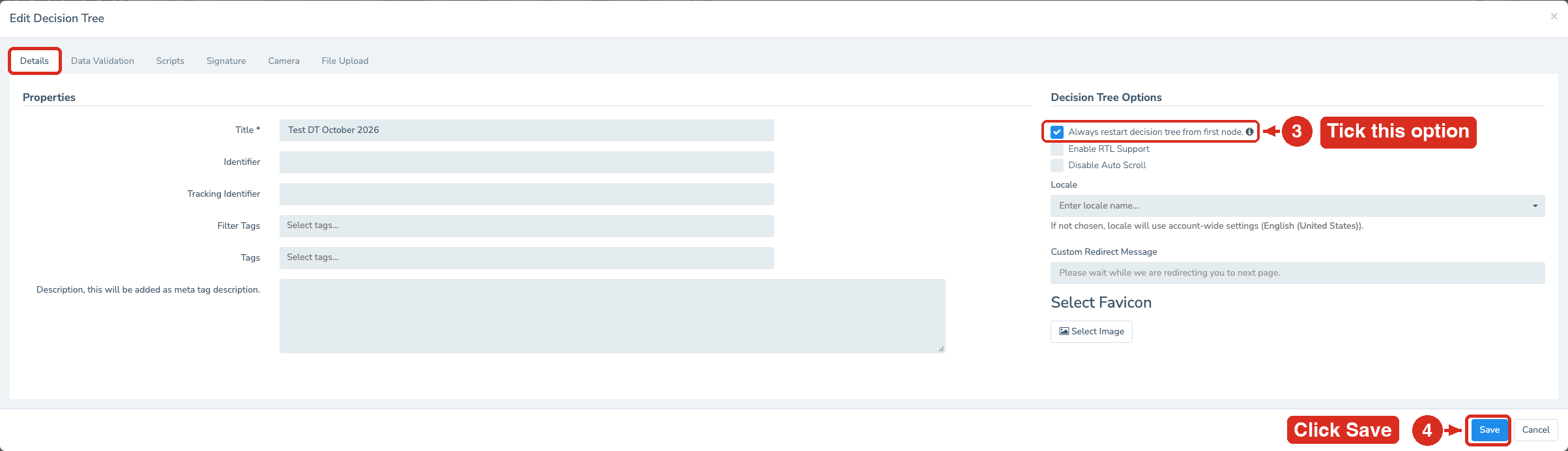
- Click Save.
- Click Publish. In the Submit Changes window, enter a version name, then click Save.
Warning: Saving is not enough. The setting reaches your live Decision Tree only after you publish.
Test it
- Open the published Live Link in a private browser window.
- Move past the first node to the next one.
- Refresh the page. You should see the first node again.
If something doesn’t work
The Decision Tree still continues where I left off
- Publish the Decision Tree again. A saved change does not reach the Live Link until you publish.
- Open Edit Decision Tree again and check that Always restart decision tree from first node. is still ticked.
My test leads do not appear under today’s date
With the option off, a new test in the same browser continues an earlier test that did not reach the end. That lead keeps its original Created at date, and the Leads date range filters by that date.
- On the Leads page, widen the date range to include the date of your first test.
- For each new test, open the Live Link in a new private browser window. Each test then creates a new lead.

