
Introduction
In this article, we will show you how to save nodes as templates in LeadsHook and reuse them efficiently. This feature is beneficial when you need to repeatedly use the same nodes across multiple decision trees.
By following the instructions provided in this article, you will be able to save time and maintain consistency in your nodes.
Step-by-Step Instructions:
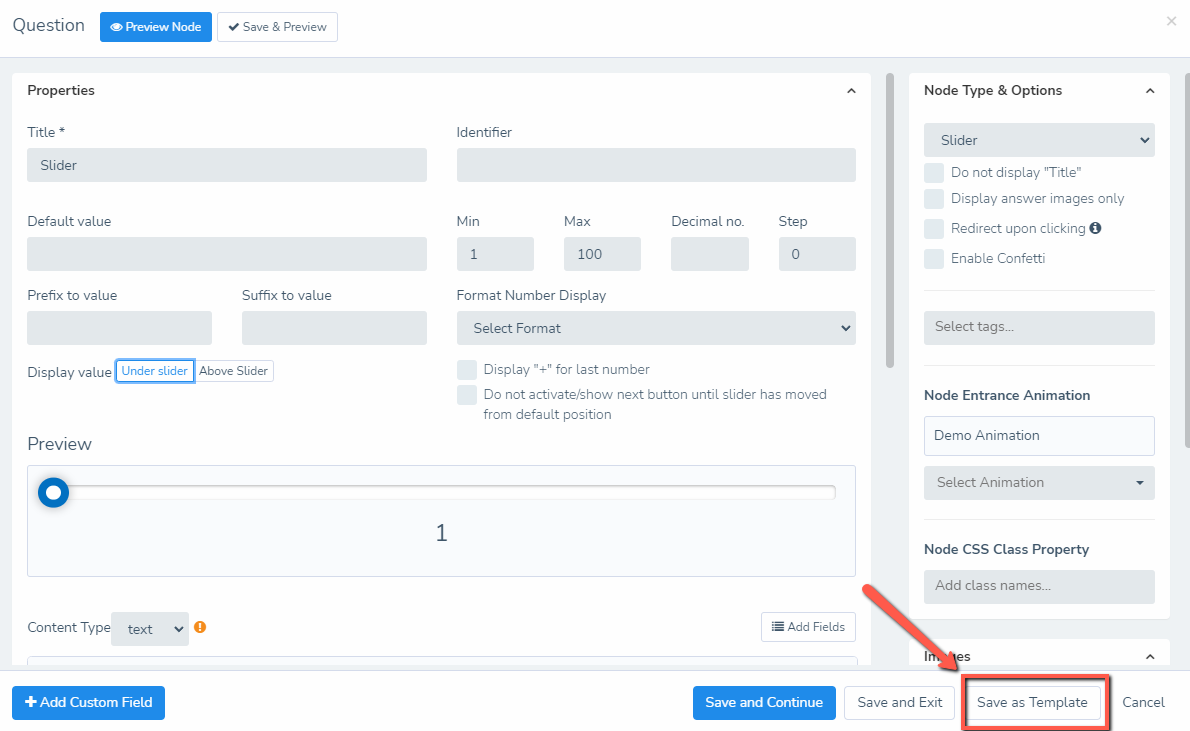
Step 1: After configuring your node, click on “Save As Template” to create a reusable node template.
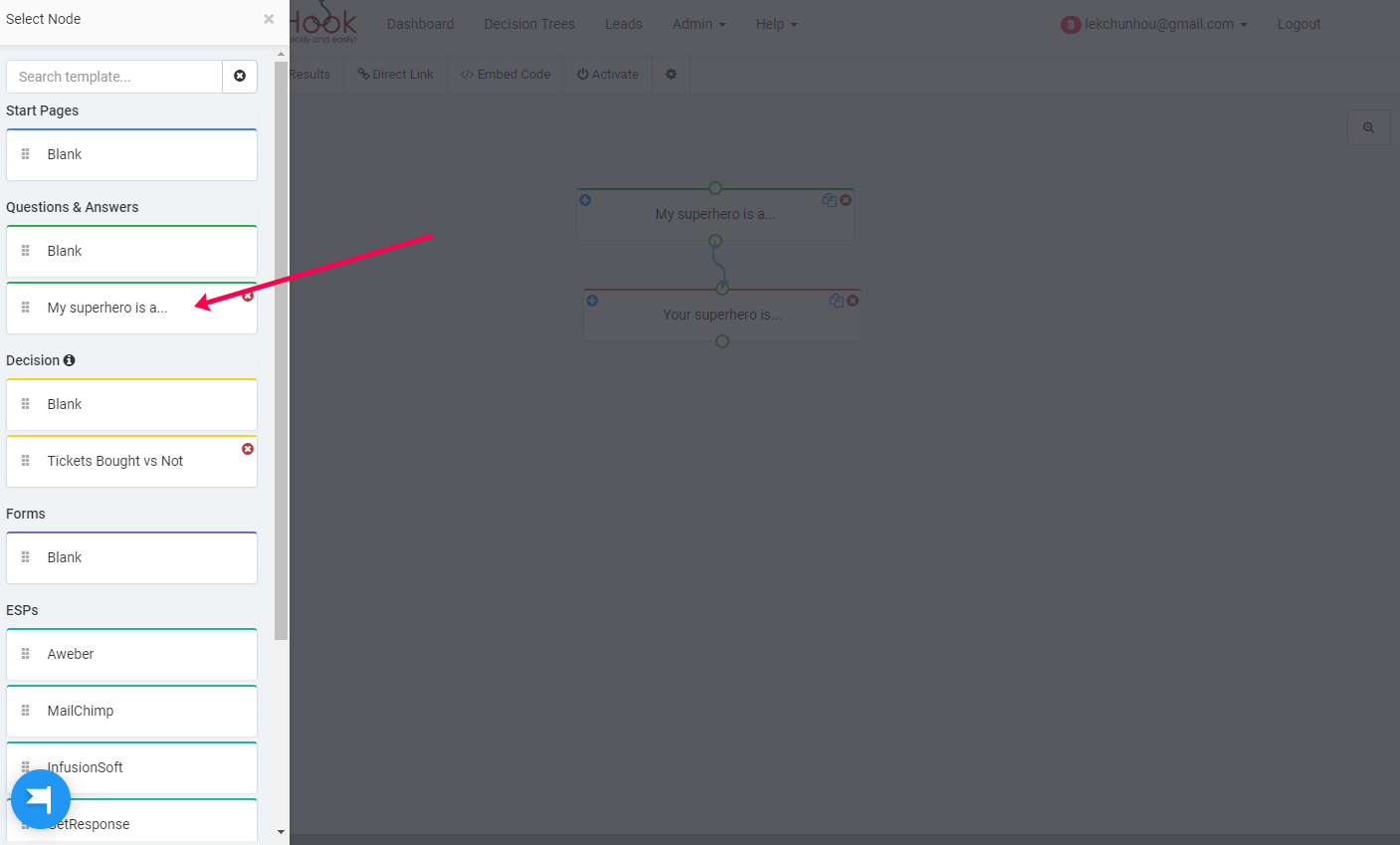
Step 2: To use your saved templates, add a new node to your decision tree. You will find your saved templates when accessing the node options.
Note:
Keep in mind that not all Nodes can be saved as a template. Decision Nodes are one of them.
By following these simple steps, you can easily save nodes as templates and reuse them when needed, streamlining your workflow in LeadsHook.
If you require further assistance or have any questions, please use the “Click for Help” button located within your Leadshook Dashboard.

