
Some services only accept requests from IP addresses on their allow list (also called a whitelist). Turn on Use Proxy in the API node to send the request from one fixed LeadsHook IP address, then add that address to the service’s allow list. Takes about 5 minutes.
Verified in LeadsHook V2 on October 6, 2026.
Video guide
When you need this
- The service you send leads to rejects requests that don’t come from an approved IP address.
- Without Use Proxy, requests from LeadsHook don’t come from one fixed IP address. Don’t add the IP you see in a single test to an allow list, because it can change.
Turn on Use Proxy in the API node
- Open your Decision Tree and open the settings of the API node that sends the request.
- Tick Use Proxy at the top of the node settings.
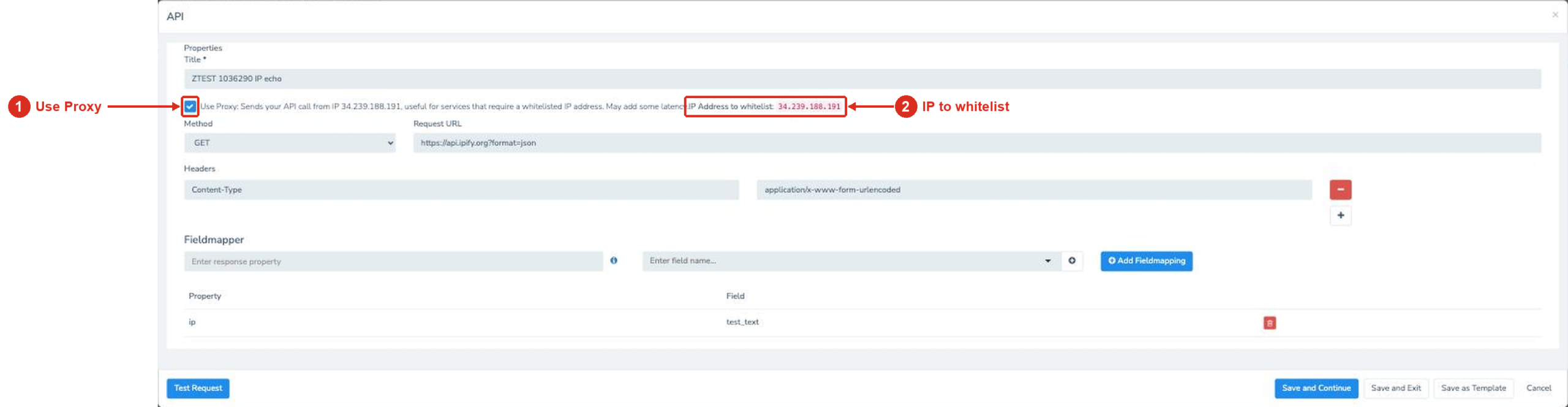
1. Use Proxy · 2. IP to whitelist - Copy the IP address shown next to IP Address to whitelist. It is currently
34.239.188.191. - Add that IP address to the allow list in the service that receives the request.
- Click Save and Exit, then publish your Decision Tree.
Note: Use Proxy may add some latency to the API call. Turn it on only for services that require a whitelisted IP address.
Webhook node requests
The Webhook node doesn’t have a Use Proxy option. If the service that receives your webhook requires a whitelisted IP address, send that request with an API node instead and turn on Use Proxy as shown above.
Test it
- In the API node, click Test Request. The test request runs from LeadsHook’s servers and follows your Use Proxy setting. Once the IP address is on the allow list, the receiving service should accept it.
- To see the IP address for yourself, add a temporary API node that sends a GET request to
https://api.ipify.org?format=json, tick Use Proxy and click Test Request. The response shows34.239.188.191. Delete the temporary node afterwards. - Open the published Live Link in a private browser window and complete the Decision Tree through the API node. Confirm the lead or request arrives in the receiving service.
If something doesn’t work
The service still rejects the request
- Check that Use Proxy is ticked on the node that sends this request, not on a different node.
- Check that the allow list contains exactly the IP address shown next to IP Address to whitelist.
- Publish the Decision Tree again after you change the node, then retest the Live Link.
- If the service also needs an API key, token or other credentials, see Webhook/API Authorization & Authentication.
The API call is slower than before
Use Proxy may add some latency. Leave it off on nodes whose service doesn’t require a whitelisted IP address.

