
You can add a text link that moves a visitor straight to the next connected node in a LeadsHook V2 Decision Tree. Use the V2 DT.next() method below – the older Version 1 Angular link code is not supported in V2.
Before you begin
- Make sure the current node is connected to the node that should appear next.
- Open the Decision Tree in the V2 builder and edit the node that will contain the link.
Add the link
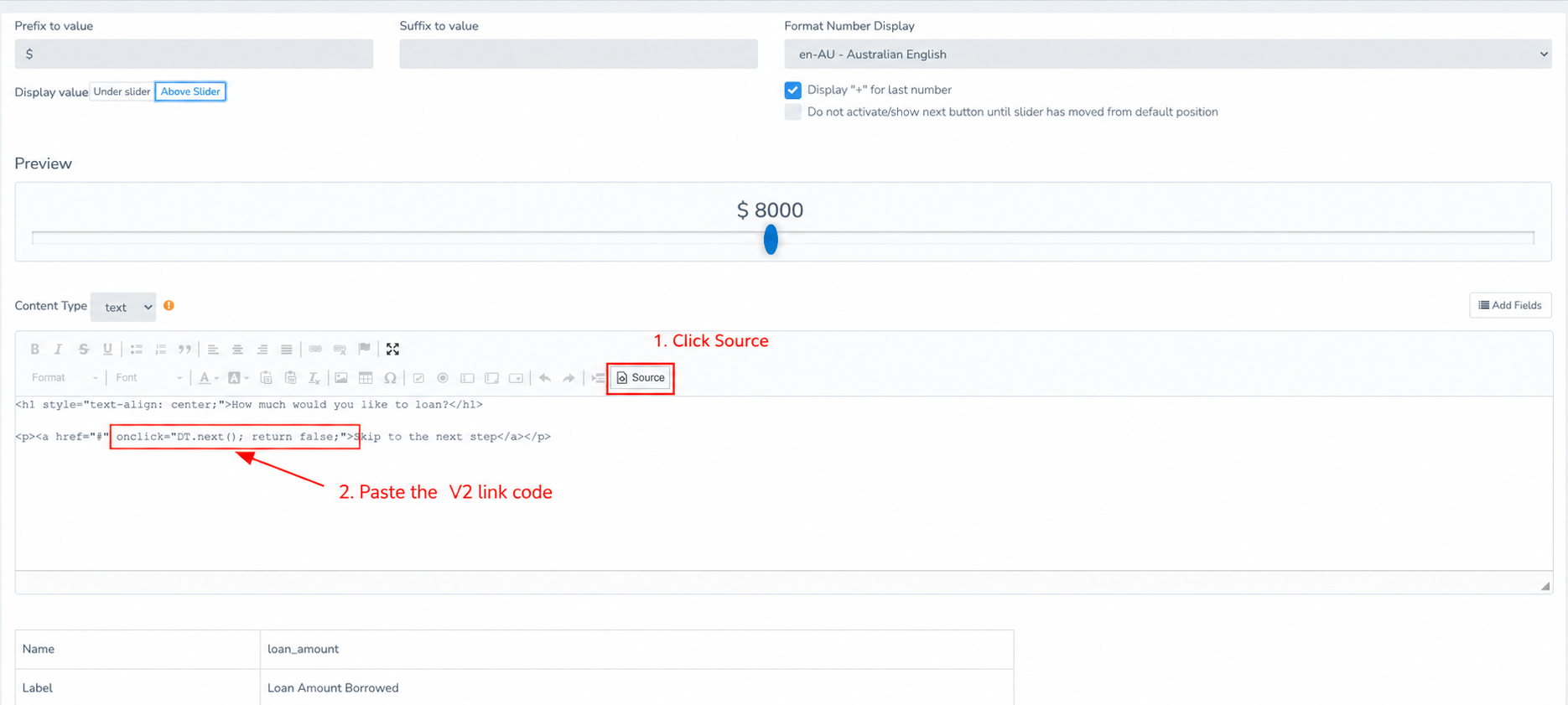
- In the node’s content editor, select Source.
- Paste this code where you want the link to appear:
<a href="#" onclick="DT.next(); return false;">Skip to the next step</a>Replace Skip to the next step with the text you want visitors to see. Keep onclick="DT.next(); return false;" unchanged.
- Select Source again to return to the normal editor.
- Select Save and Exit, then publish the Decision Tree so the change appears on the live link.
Test the link
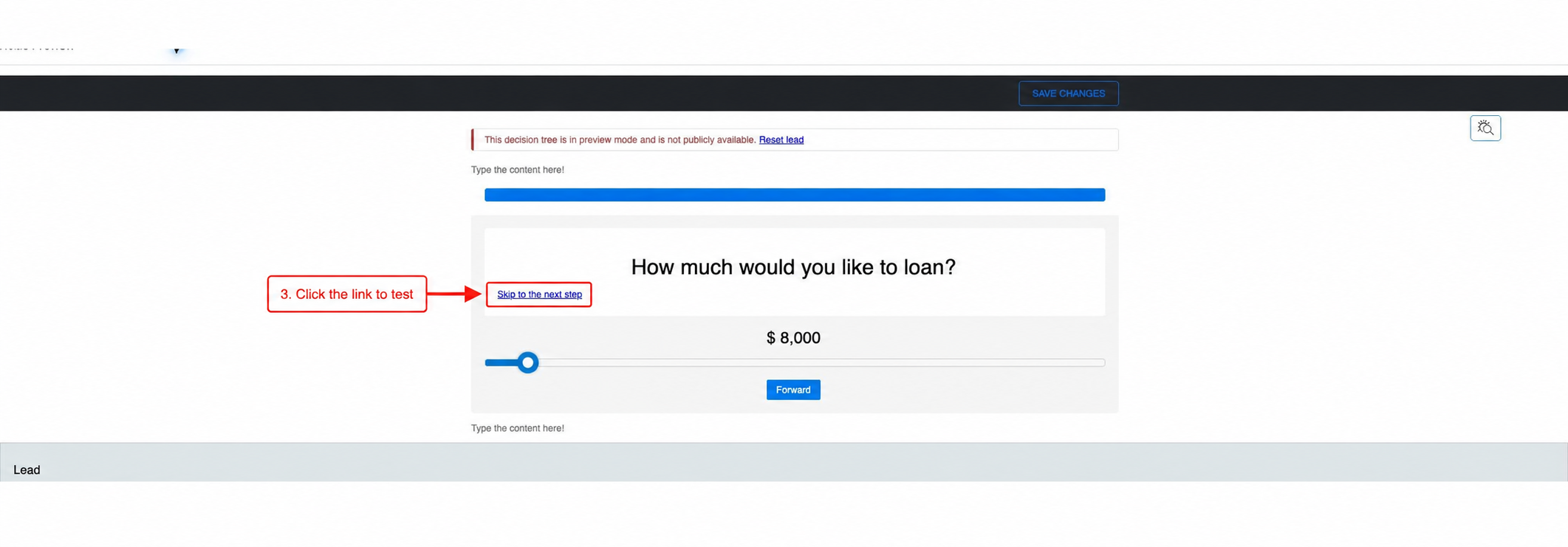
Open the Decision Tree preview or published live link and select the new text link. The next connected node should appear immediately.
Troubleshooting
- If the link does nothing, confirm that the node has a connection to a next node.
- Confirm that the link uses
DT.next()exactly as shown above. - After changing the node, save it and republish the Decision Tree before testing the live link.

